

CaDoMi™ Documentation
MCP
CaDoMi exposes your sprints, stories, teams and rubrics over the Model Context Protocol, so an AI assistant can work with them as you. Connect Claude or Codex in about a minute.
https://api.cadomi.ai/mcpUpdated September 2, 2026On this page
Overview
Connect Claude or Codex to your CaDoMi account and it can search your stories, check sprint health, review your backlog and make edits — in plain language, working from your real data.
You only see what you would see in CaDoMi. Your assistant signs in as you, so your organization’s data stays yours.
The connector is a remote MCP server. There is nothing to install and no token to copy: you sign in to CaDoMi in your browser and approve access once.
CaDoMi.ai is listed in the Claude connectors directory, so in Claude Desktop and claude.ai you can connect it without entering an address. The command-line clients still take the server address below.
Because it follows the Model Context Protocol, the same server works from Claude Desktop, claude.ai, Claude Code and OpenAI Codex. Only the setup step differs — pick your client below. Everything after that is the same whichever you use.
| Server address | Use it for |
|---|---|
| https://api.cadomi.ai/mcp | Claude Code, Codex, and adding a custom connector by hand |
Setting up — Claude Desktop and claude.ai
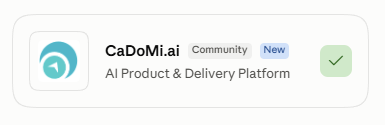
CaDoMi.ai is listed in the Claude connectors directory, so there is no URL to paste and no API token to copy. Claude signs you in through your browser.
- 1Open Settings → Connectors and browse the directory.
- 2Find CaDoMi.ai and click Connect.
- 3Sign in to CaDoMi if you are not already signed in.
- 4Review the screen showing that Claude is asking for access to your account, then click Authorize.
You are returned to Claude with CaDoMi connected.
If you cannot find CaDoMi.ai in the directory — an admin can restrict which connectors an organization may use — you can still add it by hand: choose Add custom connector, enter the name CaDoMi.ai and the server address below, and click Connect. The sign-in step is the same.
| Server address | Use it for |
|---|---|
| https://api.cadomi.ai/mcp | Adding CaDoMi as a custom connector |
Setting up — Claude Code and OpenAI Codex
Claude Code takes the server address directly. Add it from your terminal:
claude mcp add --transport http cadomi-mcp \
  https://api.cadomi.ai/mcp
Then start Claude, run /mcp, pick cadomi and follow the prompt. Your browser opens, you sign in to CaDoMi and approve — exactly as in Desktop.
Confirm it worked with claude mcp list. A connected server reports:
cadomi-mcp: https://api.cadomi.ai/mcp (HTTP) - ✔ ConnectedBefore you sign in it says "Needs authentication". That is normal — it only means you have not approved access yet. To disconnect later, run claude mcp remove cadomi-mcp.
Using a token for automation
Automation — a CI job or a script, where nobody is there to click Authorize — can send an API token as a header instead. Ask your administrator for a token, then add the server with it:
claude mcp add --transport http cadomi-mcp \
  https://api.cadomi.ai/mcp \
  --header "Authorization: Bearer YOUR_TOKEN"
In Codex, point the server at an environment variable holding the token instead, in ~/.codex/config.toml:
[mcp_servers.cadomi]
url = "https://api.cadomi.ai/mcp"
bearer_token_env_var = "CADOMI_MCP_TOKEN"
For everyday use, sign in through the browser instead — there is nothing to copy, and nothing to leak.
What you can ask
Plain language. There are no commands to memorise, and no need to name a tool.
Finding work:
Search my stories for anything about authentication.
Show me the stories in my current sprint.
Which stories in my backlog have no size estimate?
Understanding a sprint:
How is my team’s current sprint going?
What did we complete in the last sprint?
Show me the capacity for my team.
Reviewing a backlog:
Which stories aren’t ready for sprint planning, and why?
Are there duplicate stories in my backlog?
Which stories are missing acceptance criteria?
Making changes and creating stories:
Set the size of EARTH-378 to 5.
Move CNSP-8 into the current sprint, and mark it done.
Add a story for the password reset flow.
Setting up a product:
Create a product called Checkout Experience.
Set the goal for Checkout Experience to cutting abandoned carts in half.
Connect the Platform team to Checkout Experience.
When you ask for a new story or product, your assistant proposes the details for you to adjust before anything is written, and asks you to confirm before changing anything.
Guided workflows
CaDoMi ships four coaching workflows that apply our method rather than generic advice. In Claude Code, type / to see them. In Claude Desktop, just ask for one by name.
| Workflow | What it does |
|---|---|
| sprint_retrospective | Reviews a finished sprint: planned against actual capacity, how work split across increment, interrupt and kaizen, and what to try next |
| sprint_health_check | Checks a sprint in flight for scope creep, at-risk stories and unestimated work, ending with a one-line verdict |
| backlog_grooming | Finds unestimated, oversized, thin and duplicated stories, and names what is genuinely ready |
| agility_assessment | Reads your rubric scores against real sprint data and recommends the single change that matters most |
What the connector can and cannot do
It can search stories, read sprints, teams, products and rubrics, create new stories, edit a story’s title, description, acceptance criteria, notes, size, tags, group, assignees, status and sprint work type, and move stories between the backlog and a sprint.
It can also create products and update their name, product ID, description, goal, Product Owner and connected teams.
It cannot delete anything, archive a story or a product, or close a sprint. Those stay in the CaDoMi UI on purpose.
Your data
Your assistant sees only what you see. Every request runs as your account, with the same organization scoping and permissions as the web app. A colleague in another organization connecting their own assistant cannot see your stories.
Nothing is bulk-exported. Your assistant asks for specific records as it needs them, the same way the CaDoMi UI does.
Changes are confirmed and recorded. You approve each edit, and CaDoMi logs who ran which tool, in which organization, and whether it succeeded.
Access is granted through OAuth 2.1 and can be revoked at any time from your CaDoMi account.
What you need before connecting
A CaDoMi account that belongs to an organization with at least one team and product. Searching and reading work on any plan. Creating or editing stories and products requires a paid subscription, and product changes also depend on your role in the organization.
Troubleshooting
| What you see | What to do |
|---|---|
| "Needs authentication" in Claude Code | You have not signed in yet — run /mcp inside Claude and approve |
| Desktop: "Authorization failed" | Sign in to CaDoMi in your browser first, then reconnect |
| Connected, but searches find nothing | Your account may not be on a team with stories yet; check in CaDoMi |
| "Premium or Enterprise subscription required" | Editing needs a paid plan. Searching works on any plan |
| "Access denied to team …" | Working as intended — that team belongs to another organization |
| Connector shows disconnected | Reconnect from Settings → Connectors; if it persists, confirm the service is up |
Still stuck? Give your administrator the exact message — CaDoMi logs every request and can show what happened.
When CaDoMi adds new tools
A new release can add tools or workflows. Your client asks for the list once, when it connects, so it will not notice them mid-session.
Reconnect to pick them up — quit and reopen Claude Desktop, or in Claude Code run /mcp and reconnect. Restarting the app is enough; you do not need to remove and re-add the server.
Support
Questions about the connector, or something not behaving as described here? Email support@cadomitools.com, or see our support page. Your use of the connector is covered by our Terms of Service.